Path: Administration > Vessels
The Vessels section contains two sub-pages for managing vessel records and their departure/arrival schedules.
List of Vessels
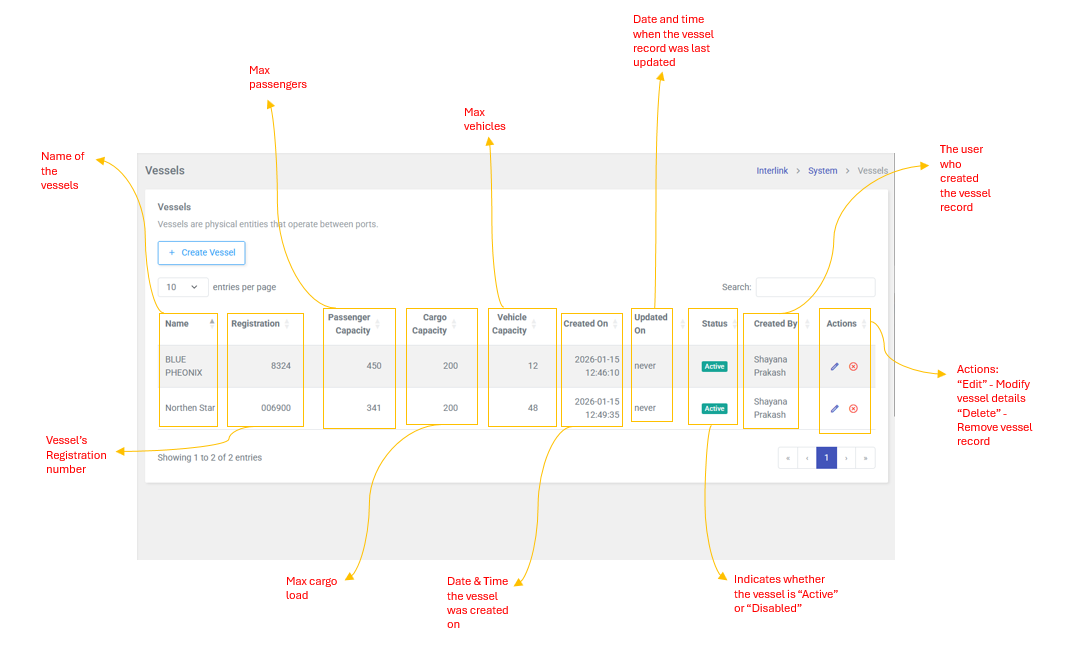
Vessels are physical entities that operate between ports. Each vessel has defined capacity limits for passengers, cargo, and vehicles. Examples: Northern Star, Ohana, Spirit of Harmony, Blue Phoenix.
Table Columns
| Column | Description |
| Name | The name of the vessel (e.g., Northern Star, Ohana) |
| Registration | The vessel's official registration number |
| Passenger Capacity | Maximum number of passengers the vessel can carry |
| Cargo Capacity | Maximum cargo capacity (in units) |
| Vehicle Capacity | Maximum number of vehicles the vessel can transport |
| Created On | Date and Time the vessel was added to the system |
| Updated On | Date and Time the vessel record was last modified |
| Status | Active (green badge) or Inactive (red badge) |
| Created By | User who created the vessel record |
| Actions | Edit  , Disable , Disable  , or Restore , or Restore  |
How to Add a Vessel
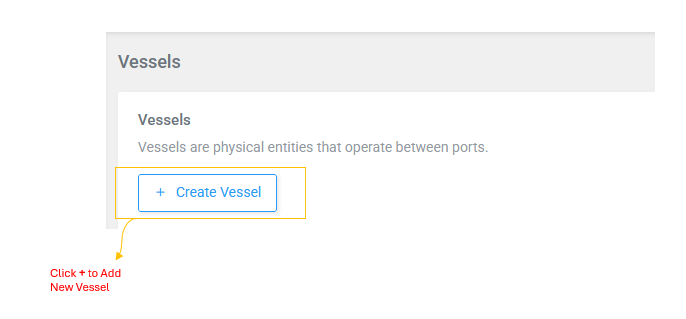
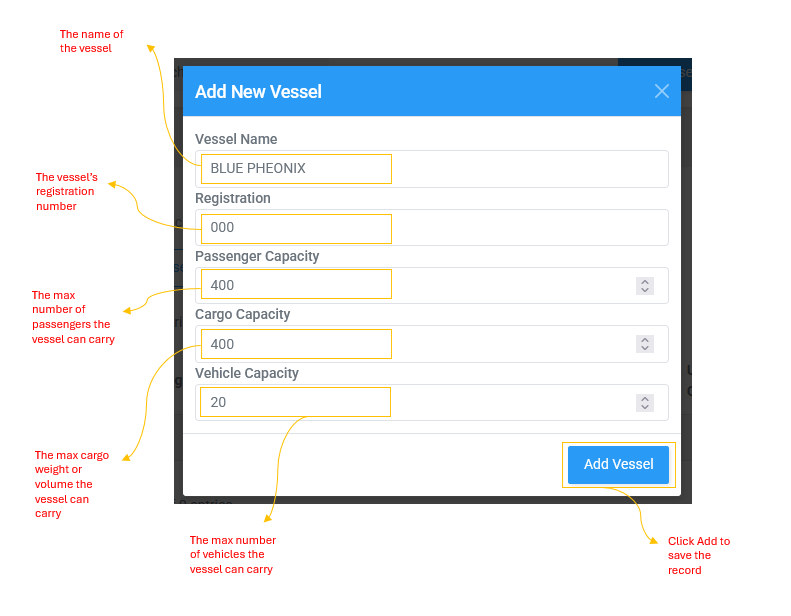
- Click + Add New Vessel (blue header modal)
- Enter: Vessel Name, Registration Number, Passenger Capacity, Cargo Capacity, Vehicle Capacity
- Click Add to save
How to Edit a Vessel
- Click (yellow header modal) -- Vessel Name is read-only
- Update Registration, Passenger Capacity, Cargo Capacity, or Vehicle Capacity
- Click Update to save
Delete / Restore
- Delete: (red modal) -- confirm to delete
- Restore: (green modal) -- confirm to restore
Vessel Timing
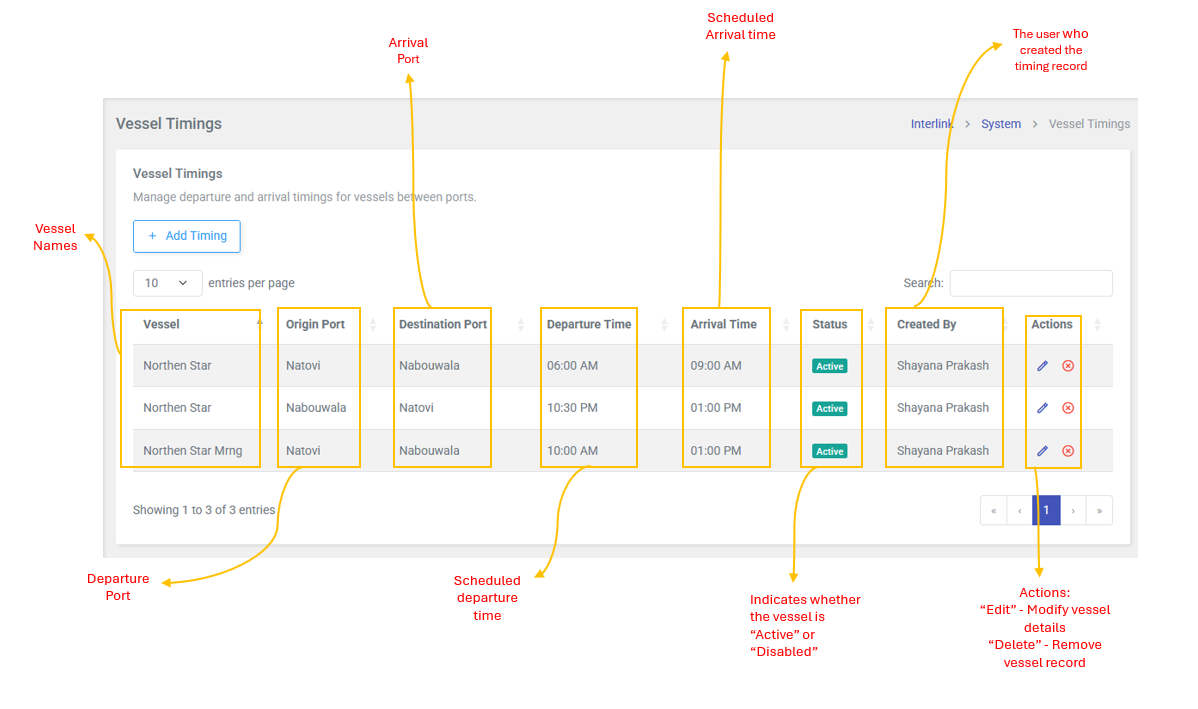
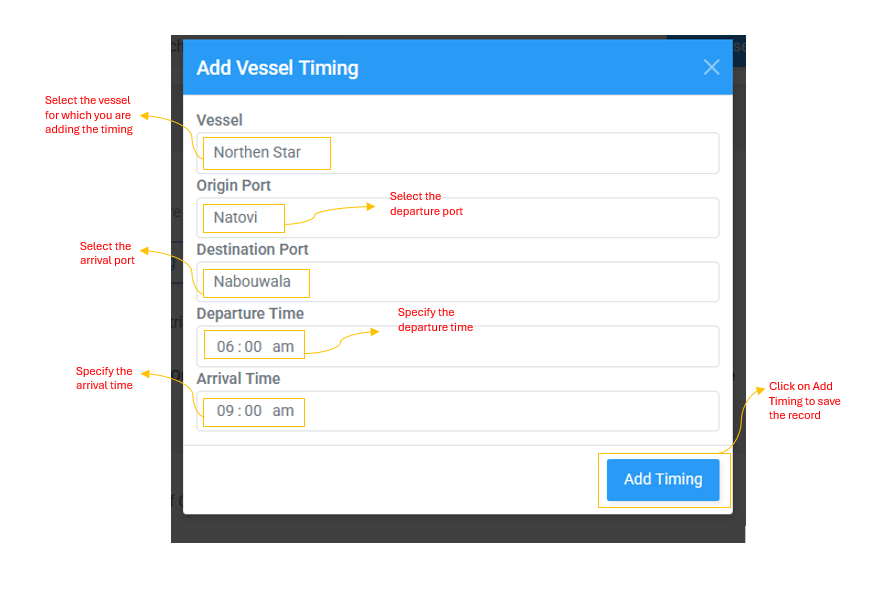
Manage departure and arrival timings for the vessels between ports. For example, the Northern Star departs Natovi at 6:00 AM and arrives at Nabouwalu at 9:00 AM.
Table Columns
| Column | Description |
| Vessel | The name of the vessel this timing applies to |
| Origin Port | The departure port (e.g., Natovi) |
| Destination Port | The arrival Port (e.g., Nabouwalu) |
| Departure Time | Scheduled time of departure (e.g., 6:00 AM) |
| Arrival Time | Scheduled Time of arrival (e.g., 9:00 AM) |
| Status | Active (green badge) or Inactive (red badge) |
| Created By | User who created the timing record |
| Actions | Edit , Delete , or Restore |
How to Add a Timing
- Click + Add Timing (blue header modal)
- Select: Vessel, Origin Port, Destination Port
- Enter Departure Time and Arrival Time
- Click Add to save
How to Edit a Timing
- Click in the Actions column (yellow header modal)
- Update the Vessel, Origin Port, Destination Port, Departure Time, or Arrival Time as needed
- Click Update to save changes
Delete and Restore a Timing
- Delete: Click (red header modal) -- confirm to delete the timing record
- Restore: For delete timings, click (green header modal) -- confirm to restore the timing record