Path: Administration > Users Management
This expandable menu contains three sub-pages for managing individual user accounts, locations, and login activity.
Users
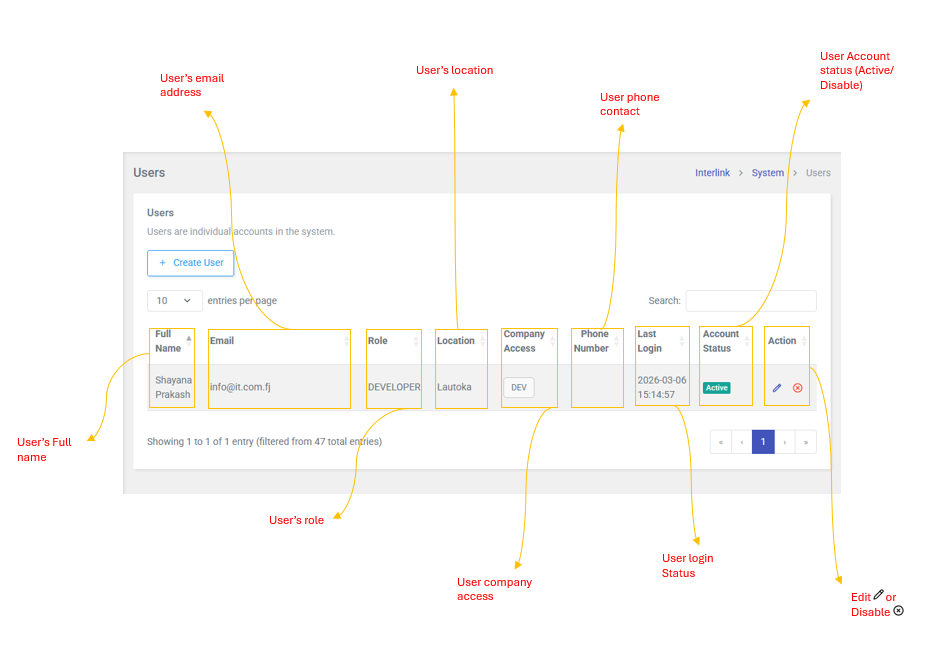
Users are individual accounts in the system. Each user has a role, location assignment, and company access.
Table Columns
| Column | Description |
| Full Name | The user's full name |
| User's email address | |
| Role | Developer, Admin, Manager, Viewer, or Agent |
| Location | Center of operation (e.g., Suva, Lautoka, Nadi) |
| Company Access | Tenants the user can access (shown as tag badges) |
| Phone Number | User's contact number |
| Last Login | Date and Time of the user's most recent login |
| Account Status | Active (green badge) or Inactive (red badges) |
| Action | Edit  , Disable , Disable  , or Restore , or Restore  |
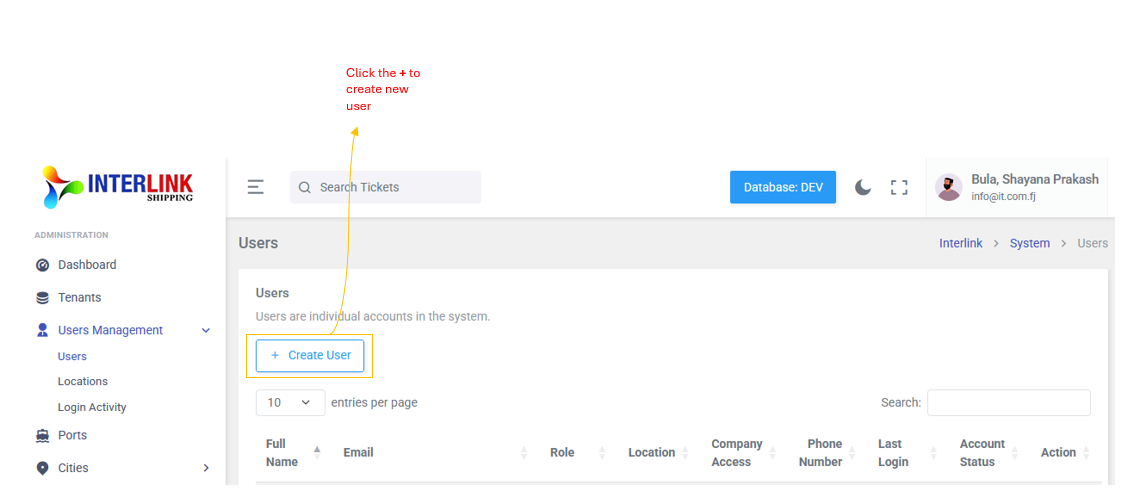
How to create a New User
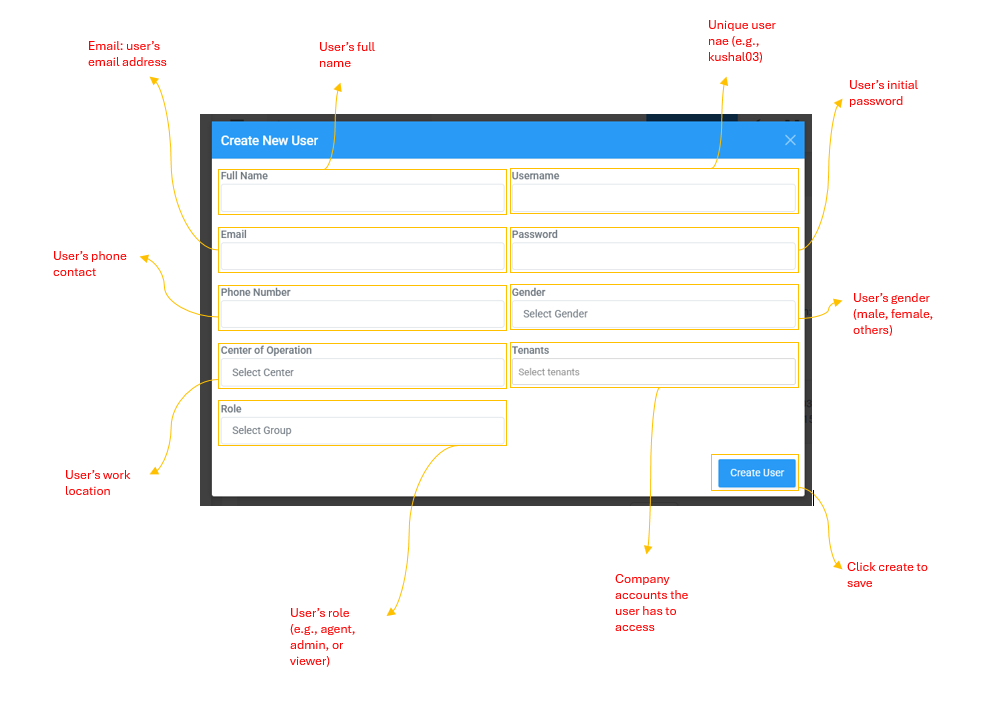
- Click the + Create New User button (blue header modal)
- Fill in: Full Name, Username, Email, Password, Phone Number, Gender
- Select the center of operation from the dropdown (e.g., Ba, Lautoka, Suva, Labasa, Nadi, etc.)
- Select one or more Tenants the user can access
- Select a role: Developer, Admin, Manager, Viewer, or Agent
- Click Create to save
How to Edit a User
- Click the icon in the Actions column (yellow header modal)
- Update the required fields: Full Name, Phone Number, Center of Operations, Role, Tenants, Password
- Click Update to save changes
How to Disable / Restore a User
- Disable: Click (red header modal) and confirm
- Restore: For disable users, click (green header modal), set a new password, and confirm
Locations
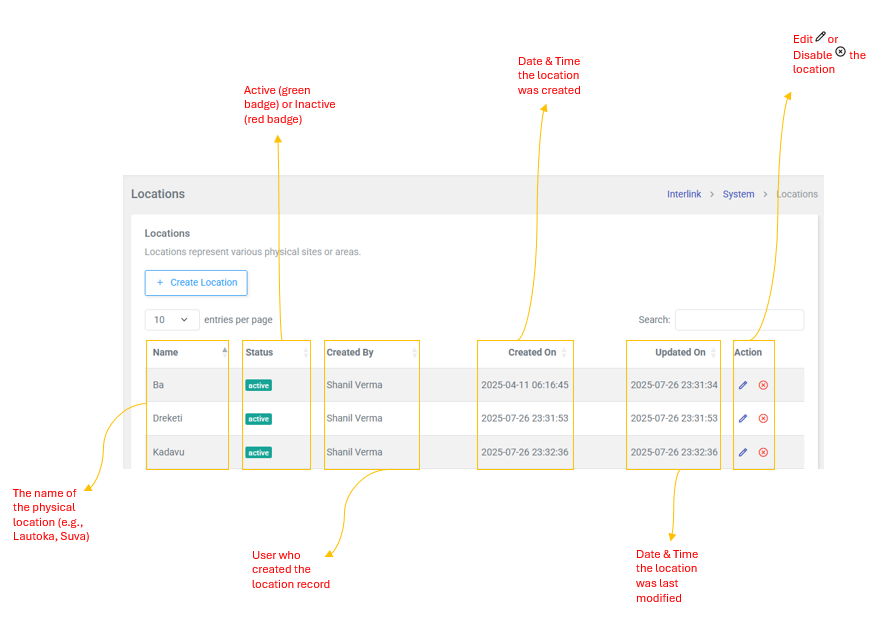
Locations represent various physical sites or areas where operations take place (e.g., Lautoka, Nadi, Suva, Ba, Labasa, and more).
Table Columns
| Column | Description |
| Name | The name of the physical location (e.g., Lautoka, Suva, Nadi) |
| Status | Active (green badge) or Inactive (red badge) |
| Created By | User who created the location record |
| Created On | Date and Time the location was created |
| Updated On | Date and Time the location was last modified |
| Action | Edit or Disable the location |
Actions
- Created: Click + Created New Location (blue header modal) -- enter Location Name
- Edit: Click (Yellow header modal) -- update Location Name
- Disable: Click (read header ,modal) -- confirm a disable
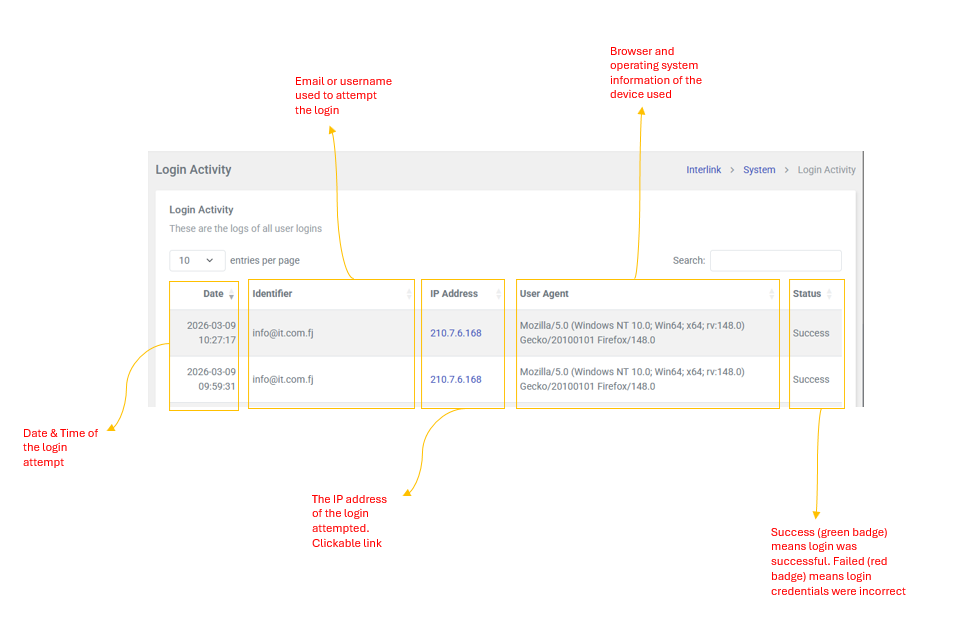
Login Activity
This is a read-only audit log that records all user login attempts. It helps administrators monitor access and identify unauthorized login attempts. No actions can be performed on this page -- it is strictly for viewing purposes.
Table Columns
| Column | Description |
| Date | Date and Time of the login attempt |
| Identifier | Email or username used to attempt the login |
| IP Address | The IP address of the login attempted. This is a clickable link that opens ip2location.com for geolocation lookup. |
| User Agent | Browser and operating system information of the device used |
| Status | Success (green badge) means login was successful. Failed (red badges) means login credentials were incorrect. |