Path: Administration > Tenants
Tenants are organizational accounts in the system. Each tenant represents a company entity (e.g; Interlink Shipping, Yavirau). This page allows administrators to create, update, and manage tenants.
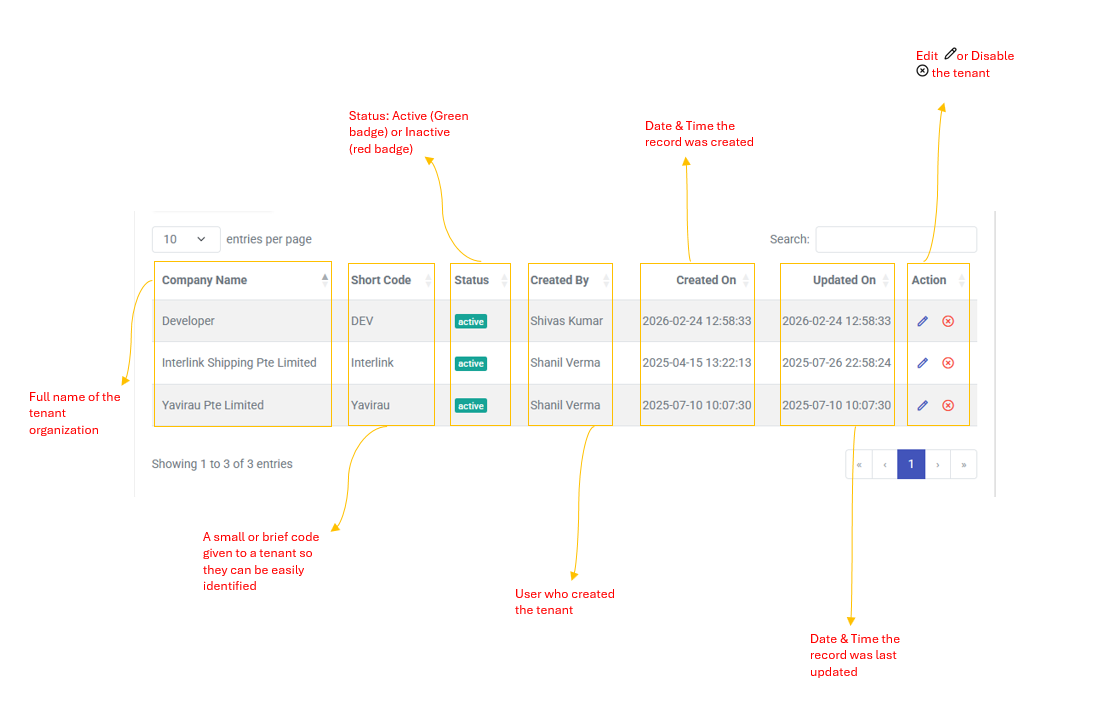
Table Columns
| Column | Description |
| Company Name | Full name of the tenant organization |
| Short Code | Abbreviated identifier for the tenant |
| Status | Active (green badge) or Inactive (red badge) |
| Created By | User who created the tenant record |
| Created On | Date and time the record was created |
| Updated On | Date and time the record was last updated |
| Action | Edit  or Disable or Disable  the tenant the tenant |
How to Create a Tenants
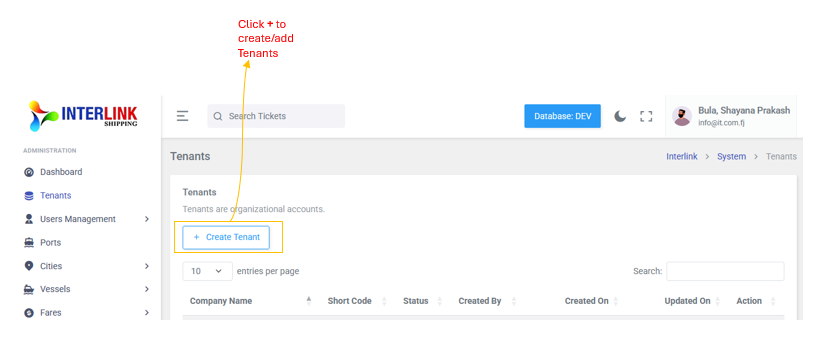
- Click the + Create Tenant button (blue header modal)
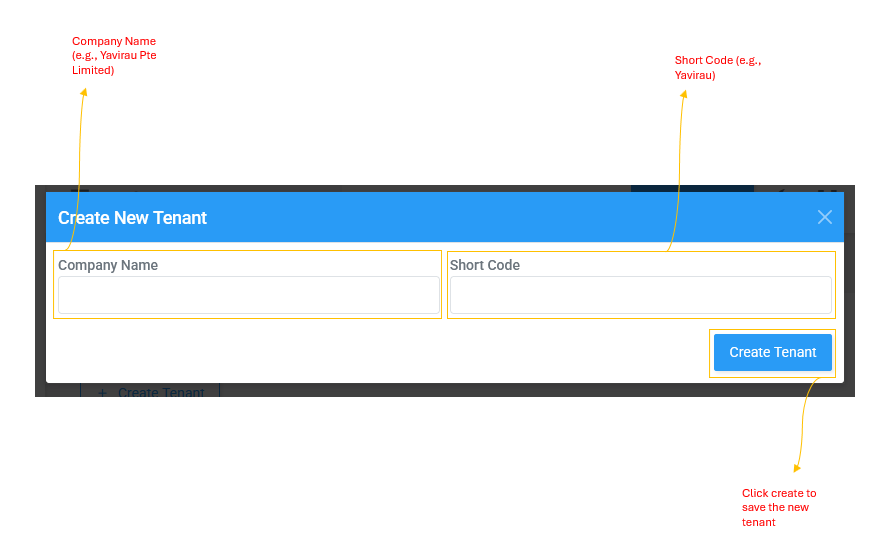
- Enter the Company Name and Short code
- Click Create to save the new tenant
How to Edit a Tenant
- Click the icon in the Actions column (yellow header modal)
- Update the Company Name or Short Code
- Click update to save changes
How to Disable Tenant
- Click the icon in the Actions column (red header modal)
- Confirm the disable action in the confirmation prompt