You can access the Refund & Cancellation Request page by clicking on "Refunds & Cancellations" under the Advanced section in the left sidebar.
This page provides a complete list of all refund and cancellation requests submitted by agents. it allows administrators and operation staffs to review, monitor, and process refund or cancellation requests efficiently.
Interlink Shipping Portal - Refund & Cancellation Requests Page
1. Exports Options
The report data on this page can be exported in different formats for reporting and record keeping purposes.
- Export to Excel (
 icon): This option allows users to export the currently displayed refund and cancellation request data into an Excel spreadsheet. The exported file can be used for financial reconciliation, auditing, internal view, or management reporting.
2. Refund & Cancellation Request Table
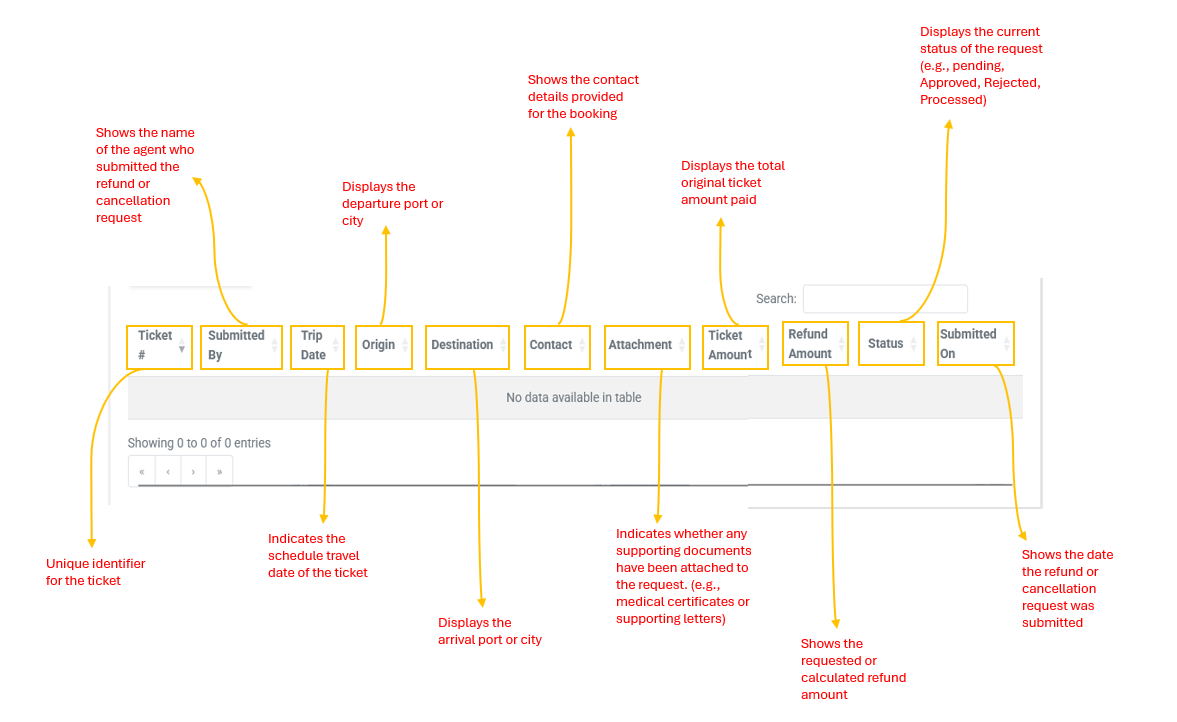
The main table displays detailed information for each refund or cancellation request submitted by agents. Each column provides specific information to help operations staff review and take actions on requests.
The table includes the following information:
- Ticket#: Displays the unique ticket number associated with the original booking.
- Submitted By: Shows the name of the agent who submitted the refund or cancellation request.
- Trip Date: Indicates the schedule travel date of the ticket.
- Origin: Displays the departure port or city.
- Destination: Displays the arrival port or city.
- Contact: Shows the contact details provided for the booking.
- Attachment: Indicates whether any supporting documents have been attached to the request (e.g., medical certificates or supporting letters). There attachments can be viewed by clicking the attachment icon.
- Ticket Amount: Displays the total original ticket amount paid.
- Refund Amount: Shows the requested or calculated refund amount.
- Status: Displays the current status of the request (e.g., Pending, Approved, Rejected, Processed).
- Submitted On: Shows the date when the refund or cancellation request was submitted.