Path: Administration > Ports
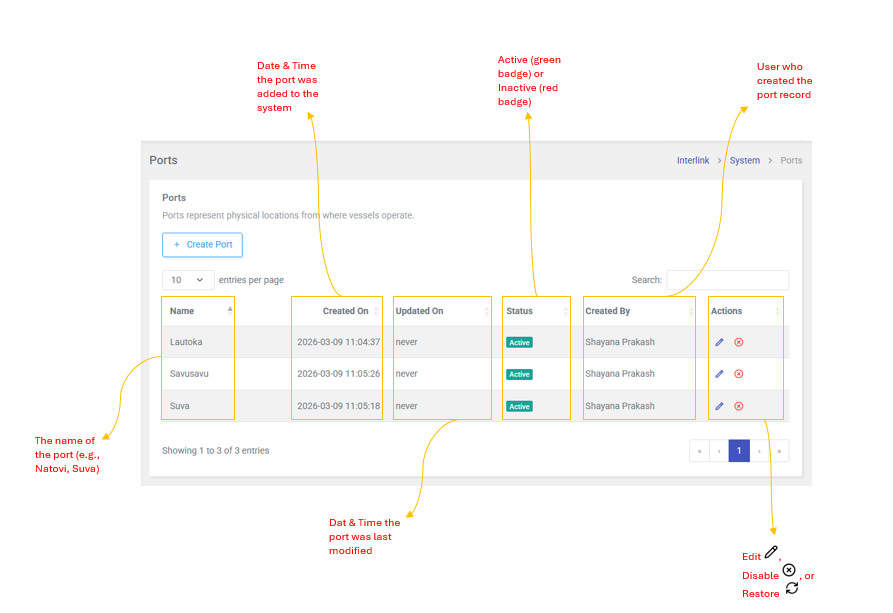
Ports represents physical locations from where vessels operate. These are the key docking points for cargo shipments. Examples include Natovi, Nabouwalu, Rotuma, Vanuabalavu, Suva, Lomaiviti, Taveuni, Savusavu, and Kadavu.
Table Columns
| Column | Description |
| Name | The name of the port (e.g., Natovi, Nabouwalu, Suva) |
| Created On | Date and Time the port was added to the system |
| Updated On | Date and Time the port was last modified |
| Status | Active (green badge) or Inactive (red badge) |
| Created By | User who created the port record |
| Actions | Edit  , Disable , Disable  , or Restore , or Restore  |
Actions
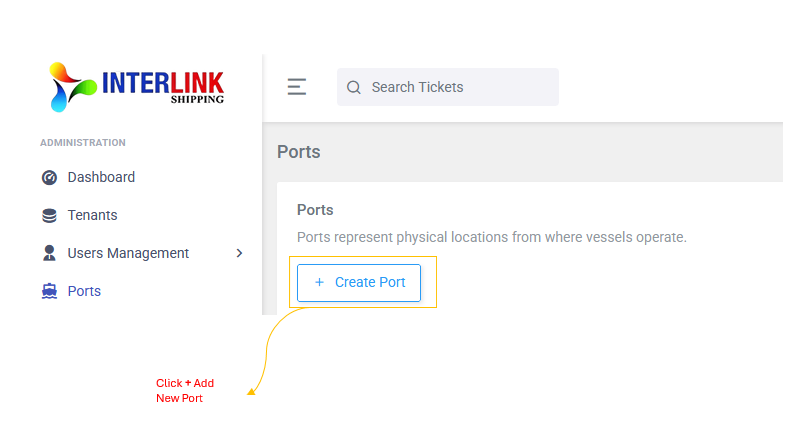
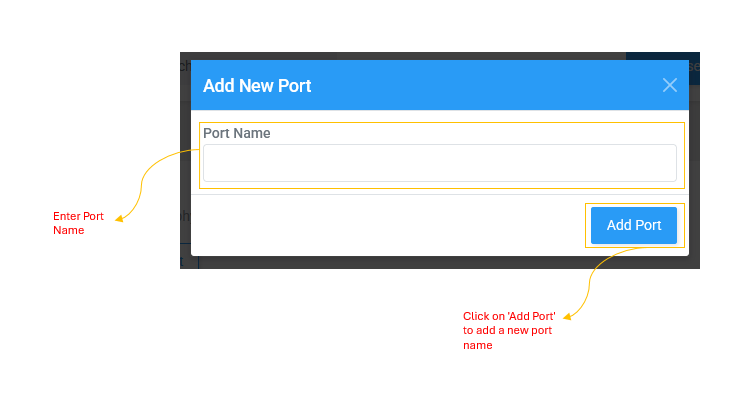
- Add New Port: Click + Add New Port (blue header modal) --enter Port Name --click Add
- Edit Port: Click (yellow header modal) -- update Port Name --Click Update
- Delete Port: Click (red header modal) -- confirm to delete
- Restore Port: For inactive ports, click (green header modal) -- confirm to restore