you can access the Issue & Features page by clicking on Support → Issues & Features in the portal menu.
The page allows users to submit, track, and manage issues or feature requests. Administrators, developers, and support staff can monitor submitted requests efficiently, respond to users, and ensure timely resolution of system problems or improvements.
Interlink Shipping Portal - Issues & Features
1. Submitting a New Request
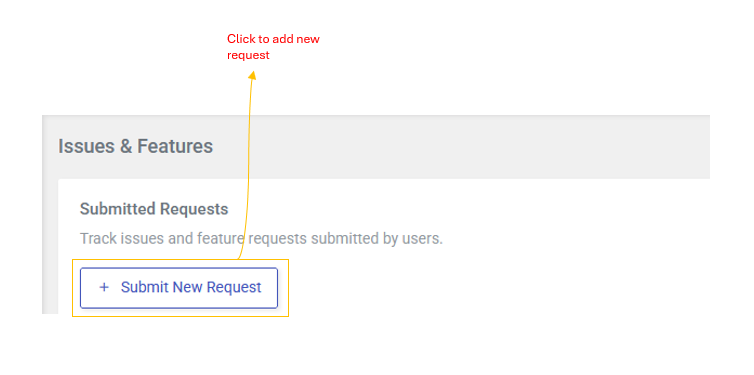
Users can submit new request via the Submit New Request button at the top of the page:
- Click the Submit New Request button.
- Title: Short description of the issue or feature.
- Type: Choose between "Issue" (something not working) or "Featuring" (something missing).
- Description: Provides a detailed description of the issue or feature request.
- Click Submit to save the request. The Request will appear in the Submitted Request Table immediately.
2. Export Options
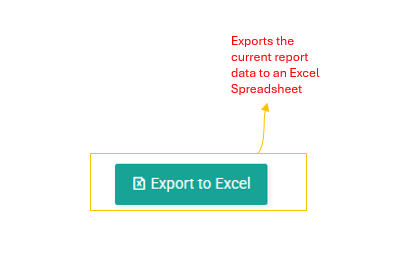
- Export to Excel (
 icon): Exports the current report data to an Excel spreadsheet.
3. Submitted Requests Table
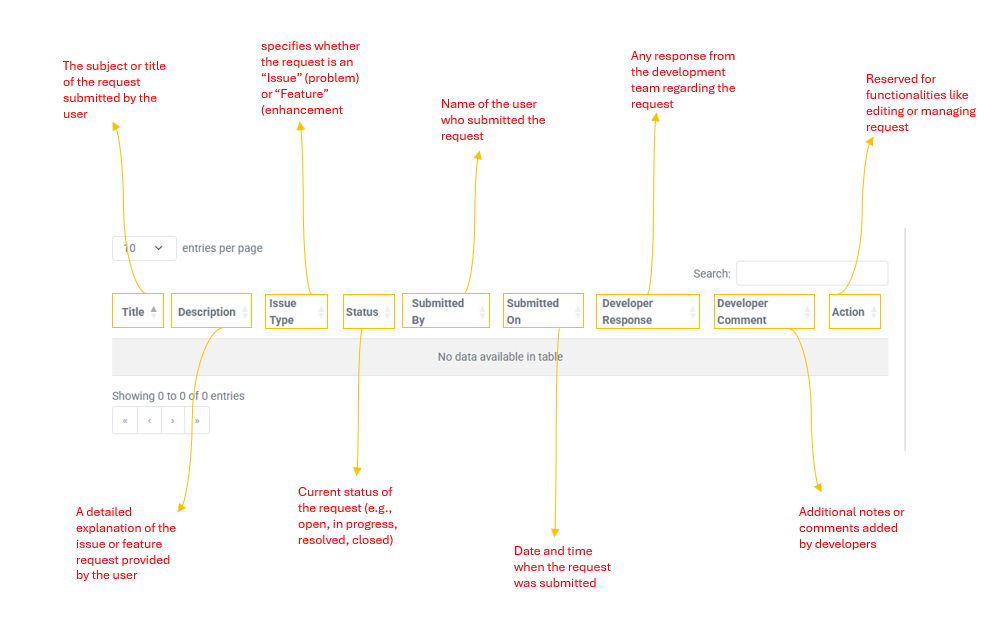
The main table on this page displays all requests submitted by users. Each row contains detailed information about a single request to help support and development teams track progress and prioritize actions.
- Title: The subject or title of the request submitted by the user.
- Description: A detailed explanation of the issue or feature request provided by the user.
- Issue Type: Specifies whether the request is an "Issues" (problem) or a "Feature" (enhancement request).
- Status: Current status of the request (e.g., Open, In Progress, Resolved, Closed).
- Submitted By: Name of the user who submitted the request.
- Submitted On: Date and time when the request was submitted.
- Developer Response: Any response from the development team regarding the request.
- Developer Comment: Additional notes or comments added by developers.
- Actions: Reserved for functionalities like editing or managing request.
4. Search and Table Functions
The Issues & Features table includes several features to help users and staff navigate, filter, and analyze requests efficiently:
- Search: Users can filter recorders by typing keywords in the search box, such as request title, user name, or issue type.
- Pagination: Displays table entries across multiple pages, with navigation buttons for moving between pages. Default views shows 10 entries per page.
- Sorting: Users can sort the data by any column (e.g., Title, Submitted On, Status) by clicking the column header)
- Page Length Selection: Allows changing the number of entries displayed per page (e.g., 10, 25, 50, 100).