Path: Reports > Accounts > Daily Cargo Sales
This report provides as detailed summary of all cargo for a given day. A dedicated search box at the top allows you to search by Invoice Number or Barcode. Each entry has a "View Ticket" button that opens a detailed modal.
Search Box
At the top of the table, a text input labeled "Search by Invoice No or Barcode" allows you to quickly find specific cargo bookings. Type an invoice number (e.g., "Cargo-18") or a barcode number to filter the table in real time.
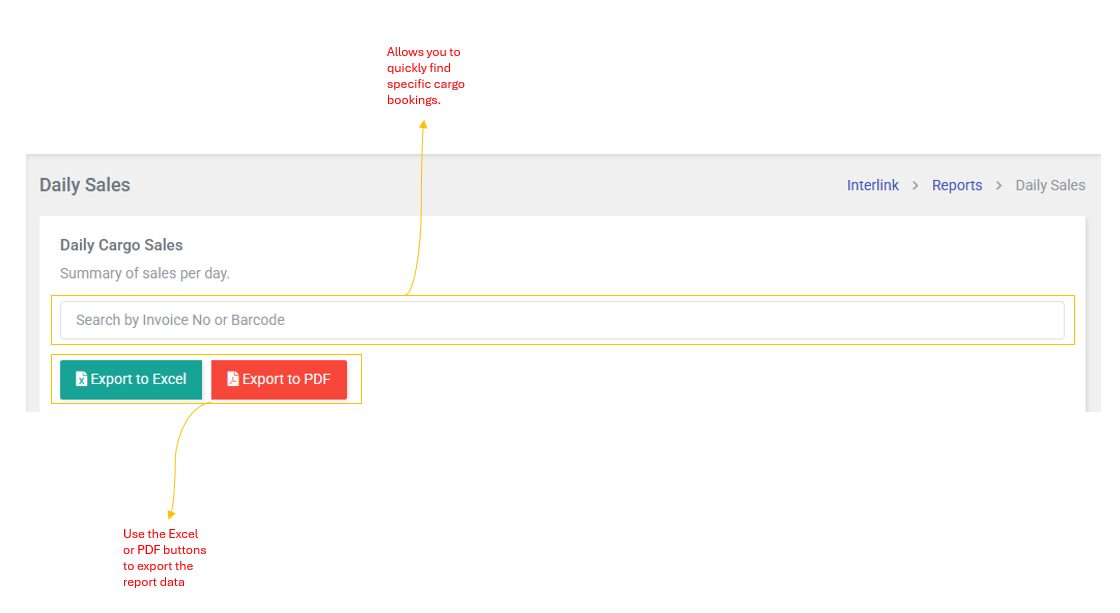
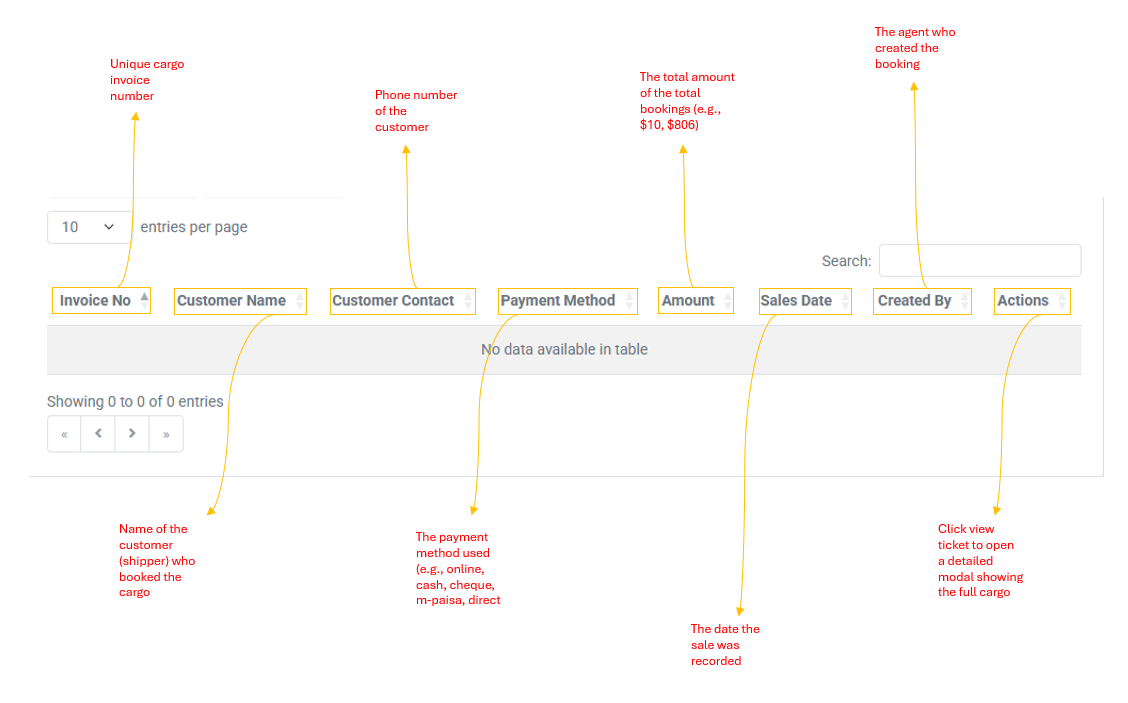
Table Columns
| Column | Description |
| Invoice Number | Unique cargo invoice number (e.g., Cargo-18, Cargo-19) |
| Customer Name | Name of the customer (shipper) who booked the cargo |
| Customer Contact | Phone number of the customer |
| Payment Method | The payment method used (e.g., online, cash, cheque, account, m-paisa, direct deposit, eftpos) |
| Amount | Total amount of the cargo booking (e.g., $10, $16,810) |
| Sales Date | The date the sale was recorded |
| Created By | The agent who created the booking |
| Actions | Click View Ticket to open a detailed modal showing the full cargo ticket |
| Barcodes (hidden) | Hidden column used for barcodes search functionality |
Expanded Ticket View (View Ticket Modal)
Clicking View Ticket opens a modal displaying the complete cargo ticket with the following details:
- Header: Vessel name, Pare ID, and cargo consignment number
- Shipper Details: Name, Address, Phone Number, ID Type and Number
- Consignee Details: Name, Address, Phone Number, ID Type and Number
- Item Table: Barcodes, Description, Unit (Weight or Volume measurement)
- Payment Table: Route, Delivery Format, Payment Method, Payment Date, Transaction ID
- Financial Summary: Subtotal, VAT (12.5%), and Total
Export Options: Use the  Excel or Excel or  PDF buttons to export the report data. PDF buttons to export the report data. |
| Note: This is a read-only report. There are no create, edit, or delete actions on this page. Sales records are automatically generated when cargo bookings are completed through the Cargo Booking (Frontline App) page. |