Path: Administration > Cargo Routes
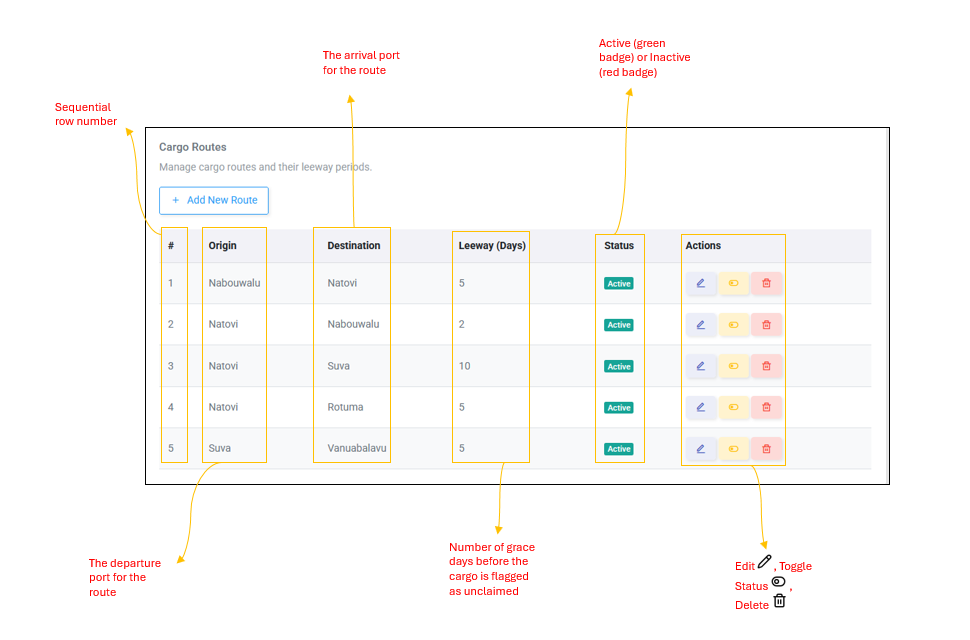
Cargo Routes define the shipping routes between ports and their associated leeway periods. The leeway is the number of days after a shipment is booked before it is considered unclaimed. This is a unique feature of the Cargo Portal that does not exist in the Passenger Portal.
Table Columns
| Column | Description |
| # | Sequential row number |
| Origin | The departure port for the route (e.g., Nabouwalu, Natovi, Suva) |
| Destination | The arrival port for the route (e.g., Natovi, Nabouwalu, Rotuma, Vanuabalavu) |
| Leeway (Days) | Number of grace days before the cargo is flagged as unclaimed (e.g., 2,5, or 10 days) |
| Status | Active (green badge) or Inactive (red badge) |
| Actions | Edit  , Toggle Status , Toggle Status  , Delete , Delete  |
How to Add a Cargo Route
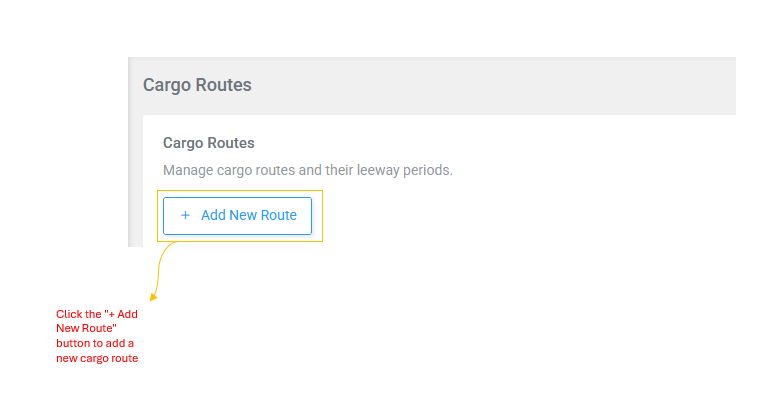
- Click + Add New Route
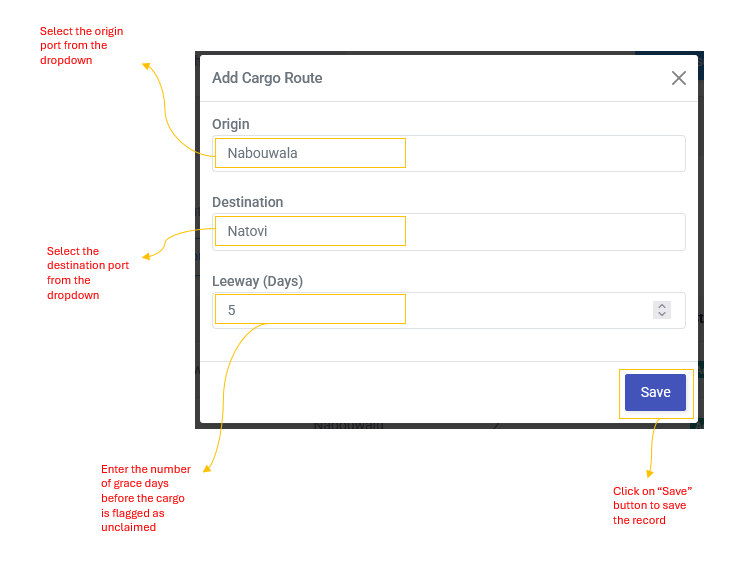
- Select the Origin port from the dropdown
- Select the Destination port from the dropdown
- Enter the Leeway (Days) -- the numbe of grace days before the cargo is flagged as unclaimed
- Click Save
Actions
- Edit : Update Origin, Destination, or Leeway days
- Toggle Status : Enable or disable a route without deleting it
- Delete : Permanently remove a route (a confirmation dialog will appear)