Path: Administration > Fares > Cargo
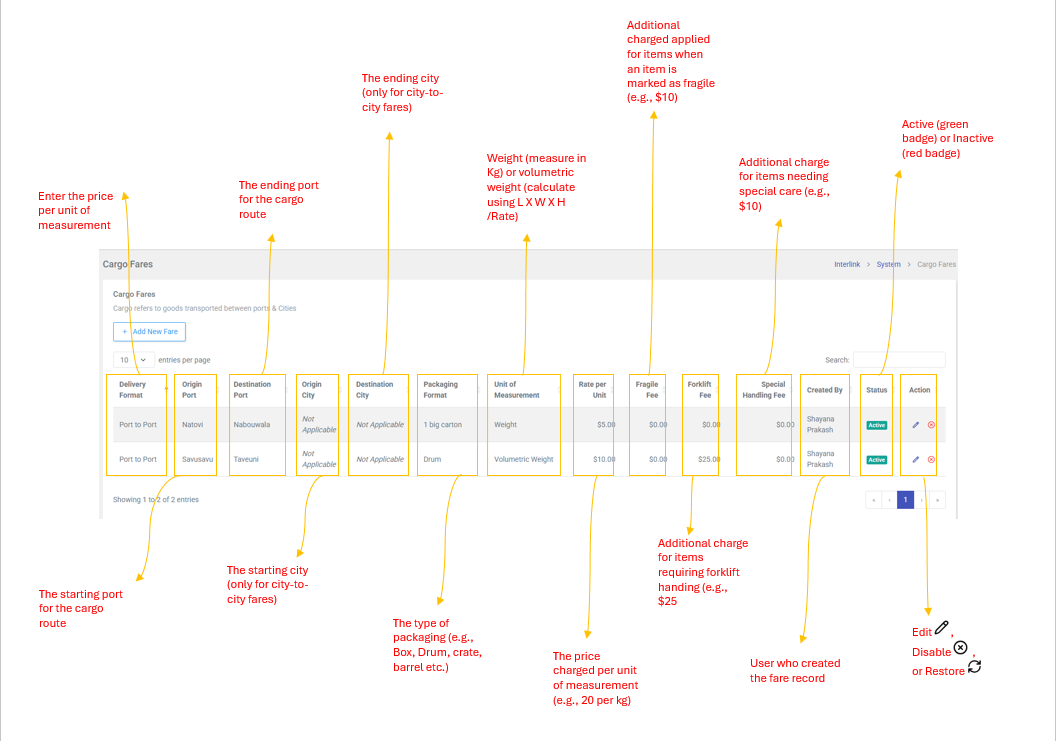
Cargo fares define the pricing for goods transported between ports and cities. Each fare entry specifies the delivery format, route, packaging type, unit of measurement, and applicable fees.
Table Columns
| Column | Description |
| Delivery Format | How the cargo is shipped: either Port to Port (direct between ports) or City to City (includes bus/ road transport) |
| Origin Port | The starting port for the cargo route. Shows "Not Applicable" for City to City fares |
| Destination Port | The ending port for the cargo route . Shows :Not Applicable" for City to City fares. |
| Origin City | The starting city (only for City to City fares). Shows "Not Applicable" for Port to Port fares. |
| Destination City | The ending city (only for City to City fares). Shows "Not Applicable" for Port to Port fares. |
| Packaging Format | The type of packaging: Drum, Box Crate, Plastic, Barrel, Bag Frozen, 20L, Empty Drum, Grog, Box-S, Box-M, Box-L, Small Cylinder, Big Cylinder, Empty Cylinder, or other |
| Unit of measurement | Weight (measure in kg) or Volumetric Weight (calculate using L X W X H / Rate) |
| Rate per Unit | The Price charged per unit of measurement (e.g., $20.00 per kg) |
| Fragile Fee | Additional charge applied when an item is market as fragile (e.g., $10.00) |
| Forklift Fee | Additional charge for items requiring forklift handling (e.g., $25.00) |
| Special Handling Fee | Additional charge for items needing special care (e.g., $10.00) |
| Created By | User who created the fare record |
| Status | Active (green badge) or Inactive (red badge) |
| Action | Edit  , Disable , Disable  , or Restore , or Restore  |
How to Add a Cargo Fare
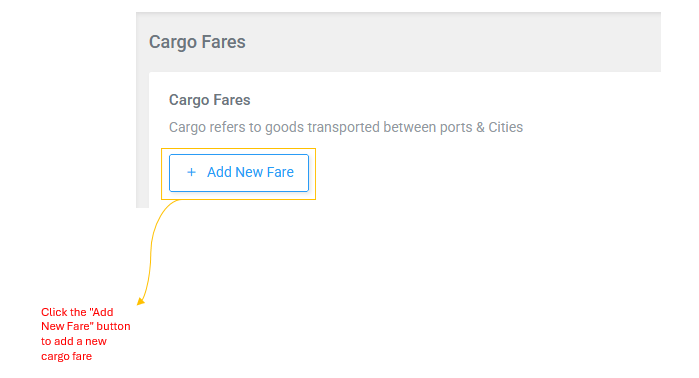
- Click + Add New Fare (blue header modal)
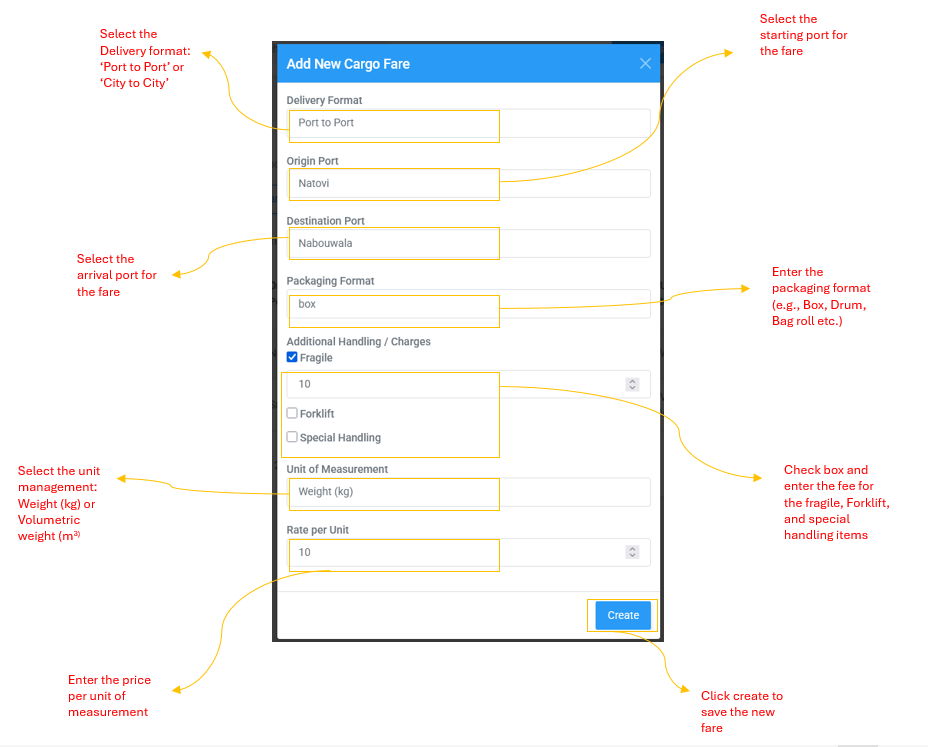
- Select the Delivery Format: Port to Port or City to City
- If Port to Port: Select Origin Port and Destination Port from Dropdowns (Natovi, Nabouwalu, Rotuma, Vanuabalavu, Suva, Lomaiviti, Taveuni, Savusavu, Kadavu)
- If City to City: Select Origin City and Destination City from dropdowns (Suva, Labasa, Savusavu, Nadi, Lautoka, Dreketi, Seaqaqa, Natovi, Nabouwalu, Savusavu Town, Taveuni Jetty)
- Enter or select a Packaging Format (Box, Drum, Pallet, Crate, Conatiner, Bag Roll, Carton, Barrel, Cold Box / Refrigerated, Loose / Bulk, or Other -- you can also type a custom value)
- Configure Additional Handling / Charges by checking each applicable box and entering the fee amount:
- Fragile -- check the box and enter the fee for the fragile items
- Forklift -- check the box and enter the fee for forklift handling
- Special Handling -- check the box and enter the fee for special care
7. Select the Unit of Management: Weight (kg)or Volumetric Weight (m3)
8. Enter the Rate per Unit (price per unit of measurement)
9. Click Create to save the new fare
How to Edit Cargo Fare
- Click the icon in the Actions column (yellow header modal titled "Edit Cargo Fare")
- Update the Rate Per Unit ($) value
- Update Handling / Extra Charges by checking/ unchecking and adjusting fee amounts for Fragile, Forklift, and Special Handling
- Click Save Changes to apply the update
| Note: The Edit modal only allows changing the Rate Per Unit and Handling fees. The Delivery Format, Ports/Cities, Packaging Format, and Unit of management can not be changed after creation. to change these, disable the fare and create a new one. |
How to Disable / Restore a Cargo Fare
- Disable: Click in the Actions column (red header modal titled "Disable Cargo Fares") -- confirm the action by clicking Yes, Disable
- Restore: For inactives fares, click (green restore icon) -- this immediately restores the fare to Active status