You can access the Agent Deposits page by clicking on "Agent Deposits" under the Advanced section in the left sidebar.
This page provides a complete list of all deposits recorded by agents across locations. it allows administrators and accounts staff to monitor, review, an track deposit entries efficiently for reconciliation and financial control purposes.
Interlink Shipping Portal - Agent Deposits Page
1. Deposits Table
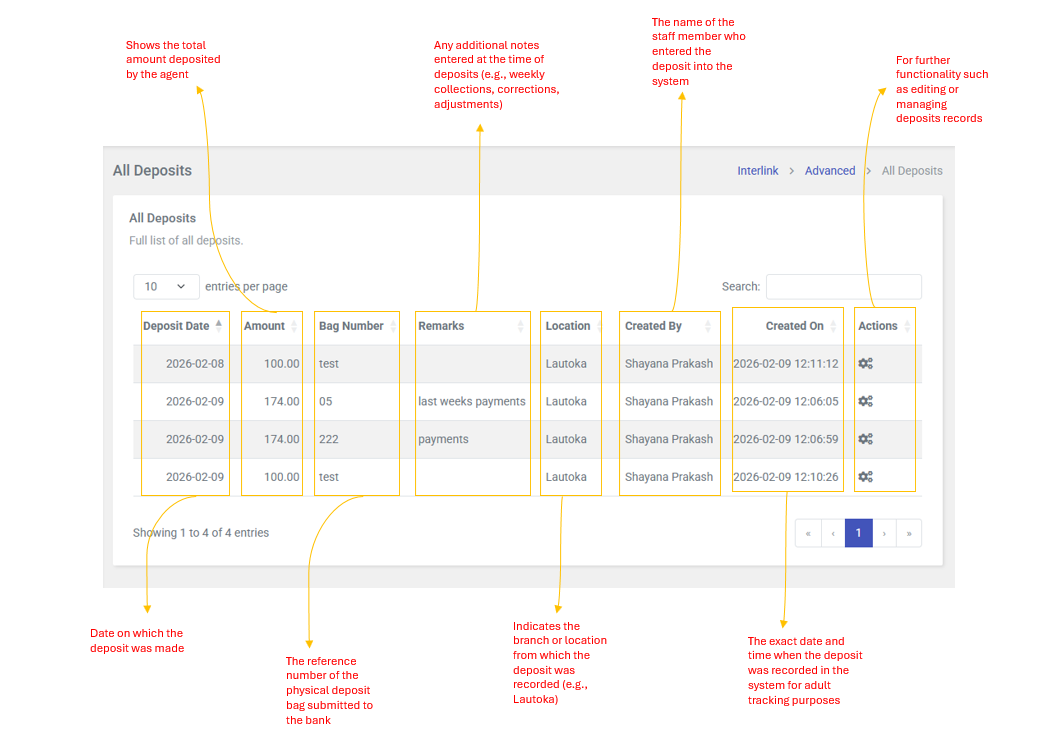
The main table displays detailed information for each deposit recorded in the system. Each column provides specific information to help accounts and management staff verify an track deposit transactions.
The table includes the following information:
- Deposit Date: Displays the date on which the deposit was made.
- Amount: Shows the total amount deposited by the agent.
- Bag Number: Displays the reference number of the physical deposit bag submitted to the bank. This helps with tracking and verification.
- Remarks: Shows any additional notes entered at the time of deposits (e.g., weekly collections, corrections, adjustments). This field may be blank if no remarks were provided.
- Location: Indicates the branch or location from which the deposit was recorded (e.g., Lautoka).
- Created By: Displays the name of the staff member who entered the deposit into the system.
- Created On: Shows the exact date and time when the deposit was recorded in the system for audit tracking purposes.
- Actions: Reserved for further functionality such as editing or managing deposits records.
2. Search and Table Functions
The Agent Deposits table includes built-in features to assist users in locating and reviewing records efficiently:
- Search: Allows users to quickly filter deposits by typing keywords such as bag number, amount, location, or staff name.
- Pagination: Displays records in pages (default 10 entries per page), with navigation options to move between pages.
- Sorting: Users can sort data by clicking on column headers (e.g., sort by date, amount, or location).
- Page length Selection: Allows users to change the number of records displayed by page.